



This tutorial walks through how to create a basic intake form in Zoho Forms, connect it to Zoho CRM, and embed it on your website. The video uses a newsletter signup as the example, but the same setup can also be used for contact forms and other lead capture workflows.
What You’ll Build
- A basic Zoho Forms intake form: Built as a newsletter signup, but the same approach also works for a contact form or general lead intake form.
- Zoho CRM field mapping: The form pushes data into the Leads module with the correct required fields and tracking values.
- Lead source tracking: A hidden Lead Source field identifies the exact landing page or form source.
- Newsletter consent tracking: A dedicated opt-in field makes it easier to segment subscribers later.
- Website embed + testing: The form is embedded on a website and then tested to confirm the CRM data passes through correctly.
A Zoho Forms lead intake workflow is more than just a form on a webpage. When it is built correctly, it becomes a structured handoff into Zoho CRM, complete with subscriber consent, lead source tracking, campaign attribution, and a clean record your team can actually use.
Best-practice takeaway: Start with the CRM requirements before you build the form. If the CRM requires fields your form does not collect, you create avoidable friction or broken submissions later.
Part 1: Create a New Form in Zoho Forms
How do I start a newsletter signup form in Zoho Forms?
- Open Zoho Forms.
- Create a new blank form.
- Select a standard form.
- Name the form something clear, such as Newsletter Signup Form.
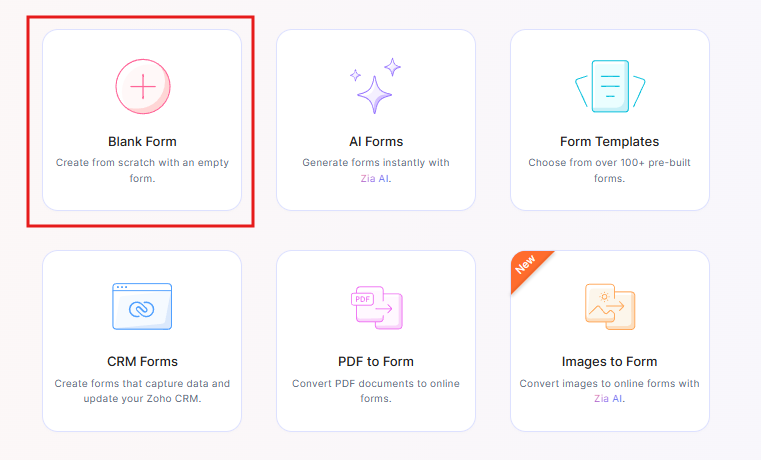
This guide uses a newsletter signup form as an example, but the same structure works for a website contact form or other simple intake process form.
Part 2: Check Zoho CRM Before You Build the Form
Why should I review CRM fields first?
Before adding fields in Zoho Forms, go into Zoho CRM and review the destination module. In this tutorial, the form maps into the Leads module, so the first step is checking which CRM fields are currently required.
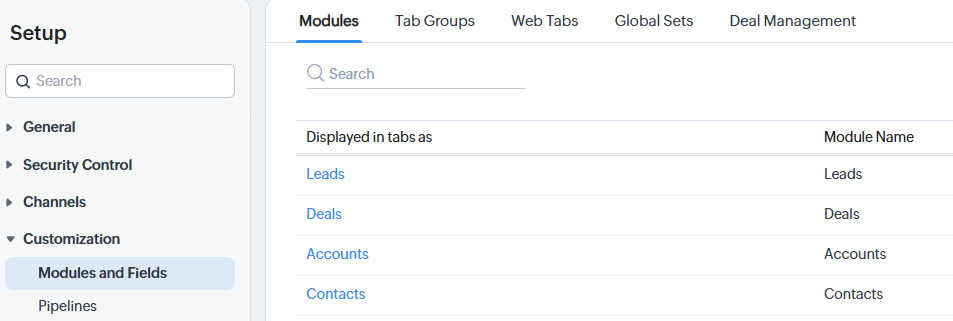
What CRM fields should be required for a newsletter form?
For a newsletter signup, you usually want as little friction as possible. The tutorial recommends minimizing required fields so the form is easy to complete.
- Email is often the most important identifier
- First/Last Name may still be required depending on CRM setup
- Company is usually unnecessary for a basic newsletter signup, but check to make sure it isn’t a required field first.
Practical rule: The shorter the form, the better the conversion rate tends to be. Only require what your team truly needs.
Part 3: Prepare CRM Fields for Tracking and Segmentation
What extra CRM fields help with newsletter tracking?
In addition to the standard contact fields, this tutorial adds fields that make reporting and segmentation more useful later.
- Newsletter Opt-In
- Lead Source
Why add a newsletter opt-in field?
A dedicated opt-in field makes it easier to identify who subscribed through this form and later build segments, workflows, or marketing lists inside Zoho CRM or Zoho Campaigns.
What should the lead source be for this example?
In the tutorial, the form is tied to a specific landing page, so the lead source is set as:
- Newsletter landing page
Part 4: Build the Core Fields in Zoho Forms
What fields are added to the Zoho Form?
The main fields used in the walkthrough are:
- First Name
- Last Name
- Lead Source
- Newsletter Opt-In
Which fields should the visitor actually see?
For the visible form, keep the experience simple. The user should mainly see the fields they need to complete the signup, such as name, email, and a clear consent field.
Part 5: Use a Hidden Field for Lead Source Tracking
How do I pass lead source into Zoho CRM without showing it on the form?
Add a single-line field in Zoho Forms for Lead Source, then hide it and set the initial value manually.
For this example, the initial value is:
- Newsletter landing page
This lets the form pass a clean attribution value into Zoho CRM while keeping the user-facing form uncluttered.
Why this matters: Hidden fields are one of the easiest ways to preserve useful reporting data without making the form longer or more confusing for the visitor.
Part 6: Add the Newsletter Opt-In the Right Way
Should I use a checkbox or a decision box in Zoho Forms?
In the video, the setup is corrected mid-build: a standard checkbox is replaced with a decision box. In this workflow, that is the cleaner option for newsletter consent because it maps more clearly to the CRM opt-in field.
What should the consent field say?
Use straightforward language so the user understands what they are agreeing to. The tutorial uses wording along the lines of:
- I would like to subscribe to your newsletter
The field is then configured as required in the example, with the consent captured as part of the submission.
Compliance note: The tutorial shows a default-checked consent style. Before publishing that setup broadly, make sure it matches your internal compliance and email marketing requirements.
Part 7: Clean Up the Form Display and Redirect Settings
What display settings should I change in Zoho Forms?
One of the first cleanup steps in the tutorial is to hide the default form header. That usually makes the embedded version fit a landing page layout better.
Should I redirect to a thank-you page after submission?
Yes. Instead of leaving users on the same page after submission, the tutorial redirects them to a dedicated thank-you page.
A thank-you page is useful because it lets you:
- confirm the signup
- create a cleaner conversion flow
- offer next steps or additional content
- measure success more clearly
Part 8: Style the Form for Your Website
What are my options for styling a Zoho Form?
The tutorial mentions two main options:
- Use the Zoho Forms theme builder
- Use exported HTML and CSS for deeper customization
When should I use iframe instead of custom HTML and CSS?
The walkthrough leans toward iframe embed for simpler maintenance. With an iframe, updates to the form stay live automatically. With custom HTML and CSS, design flexibility is better, but any future form changes may require you to update and re-embed the code.
Recommended approach for most teams: Start with the iframe. Only move to custom HTML/CSS when the website design demands tighter styling control.
Part 9: Turn On UTM Tracking
Why should I enable UTM tracking in Zoho Forms?
UTM tracking helps preserve attribution data when traffic comes from campaigns, promotions, ads, or other marketing links. Even for a simple newsletter signup, this adds useful context to the lead record.
That can help you answer questions like:
- Which campaign drove this signup?
- Which landing page converted best?
- Was the lead generated from paid or organic traffic?
For more on UTM Tracking, CLICK HERE for an in-depth guide.
Part 10: Integrate Zoho Forms with Zoho CRM
How do I connect the form to Zoho CRM?
- Go to Integrations in Zoho Forms.
- Select Zoho CRM.
- Choose the target module, which in this example is Leads.
- Map each form field to the matching CRM field.
What field mappings are used in this example?
- First Name → First Name
- Last Name → Last Name
- Email → Email
- Newsletter Opt-In → Opt-In field
- Lead Source → Lead Source
What should happen if the record already exists in CRM?
The tutorial uses Email as the matching field and allows Zoho CRM to update an existing record with new values when appropriate. That is often the cleanest way to avoid duplicates for newsletter signups.
Part 11: Review Workflow and Assignment Options
Can Zoho CRM trigger workflows from a form submission?
Yes. The walkthrough points out that you can trigger workflow automation when the form is submitted. For a newsletter process, that might mean sending a welcome email or kicking off a follow-up sequence.
What about assignment rules?
The tutorial notes that assignment rules are more useful for a sales contact form than a simple newsletter signup. But if you are adapting this process for lead routing, the option is there.
Part 12: Embed the Form on Your Website
How do I add the Zoho Form to a webpage?
Once the form is integrated, go to Share in Zoho Forms and copy the iframe embed code. Then paste that code into an HTML block in your website builder.
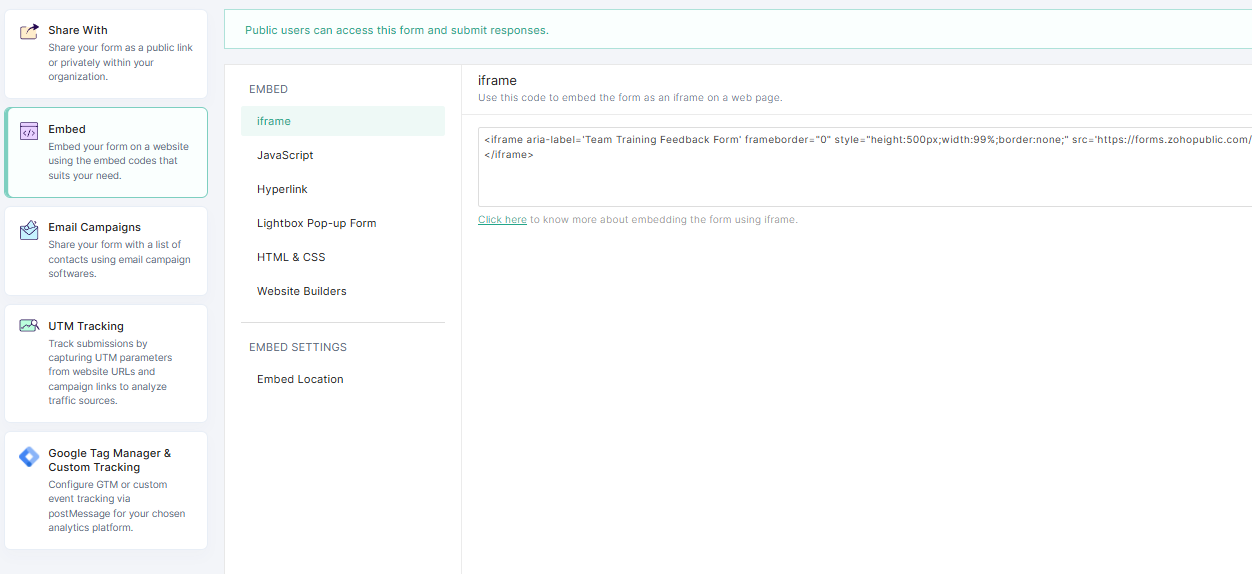
The video demonstrates this in Elementor, but the same approach applies to other builders and custom pages.
What layout issues should I look for after embedding?
After the form is added to the page, review the presentation carefully. Common issues include:
- iframe width or height being too small
- scrollbars appearing unnecessarily
- background styling not matching the page
- extra spacing or sidebar layout problems
Part 13: Test the Entire Workflow End to End
Why is live testing so important?
The tutorial includes a real example of catching a field that should not have appeared on the live form. After removing it in Zoho Forms, the iframe embed updates automatically.
That is a good reminder that the final test should happen on the actual website page, not just inside the form builder.
What should I confirm during testing?
- Only the intended fields appear on the form
- The hidden lead source passes correctly
- The opt-in field maps correctly into Zoho CRM
- The thank-you page redirect works
- The submission creates or updates the CRM lead record
- The lead source and subscriber data appear correctly in CRM
Big advantage of iframe: Because the form stays live from Zoho Forms, small fixes can take effect immediately without replacing embed code on the page.
Zoho Forms to Zoho CRM Reference Table
| Component | Purpose | Example in This Tutorial | Best Practice |
|---|---|---|---|
| Form Type | Collect website lead data | Newsletter signup form | Keep the first version simple and easy to complete |
| Destination Module | Stores the submitted record in CRM | Leads | Review required fields before building the form |
| Email Field | Primary contact field and match key | Email address | Use email as the duplicate check field when appropriate |
| Hidden Lead Source | Tracks where the submission came from | Newsletter landing page | Hide tracking fields from visitors but pass them into CRM |
| Opt-In Field | Captures newsletter consent | Decision box for newsletter subscription | Use clear wording so users understand the consent |
| Embed Method | Displays the form on the website | iframe in Elementor | Use iframe for easier maintenance unless custom styling is essential |
Frequently Asked Questions
How do I connect Zoho Forms to Zoho CRM?
In Zoho Forms, open the Integrations area, choose Zoho CRM, select the destination module such as Leads, and map each form field to the corresponding CRM field.
What fields should a Zoho newsletter signup form include?
A simple newsletter signup form should usually include email, a clear opt-in or consent field, and optionally first name and last name if your CRM or marketing process needs them.
How do I track where a Zoho form submission came from?
Use a hidden field such as Lead Source with a preset value like Newsletter landing page. You can also enable UTM tracking to preserve campaign attribution.
Should I use iframe or HTML and CSS to embed a Zoho form?
An iframe is easier to maintain because updates stay live automatically. HTML and CSS give you more visual control, but they usually require more maintenance whenever the form changes.
Why should I test the form after embedding it on my website?
Testing helps catch layout issues, accidental extra fields, hidden field problems, CRM mapping errors, and redirect issues before the form is live to real users.
Need Help Building Zoho Forms That Actually Feed Clean Data into Zoho CRM?
Whether you are creating newsletter forms, contact forms, or full lead intake workflows, Zenatta can help you design the form, field mapping, attribution tracking, and CRM automation so everything works cleanly from day one.
Book a CRM Strategy Session