



Most Zoho Books accounts payable problems do not start with a missed payment. They start with a field nobody slowed down to read. A bill dated the day it was entered instead of the day it arrived, a payment posted to the wrong paid through account, a bank fee netted out of a payment amount: each one is a two-second decision that turns into an hour of cleanup during reconciliation.
This guide walks through Zoho Books accounts payable end to end. You will cover vendor setup and the two settings worth getting right on day one, how to enter a bill so your aging reports stay accurate, how to record vendor payments including bank charges, how to troubleshoot payments that refuse to match in the bank feed, and how to use the AP aging reports to catch what slipped. Purchase order to bill conversion is a related topic with its own workflow and is covered separately. If you are still getting oriented in the application generally, our full Zoho Books product tutorial is the better starting point, and the rest of our Zoho Books resource hub covers the surrounding modules.
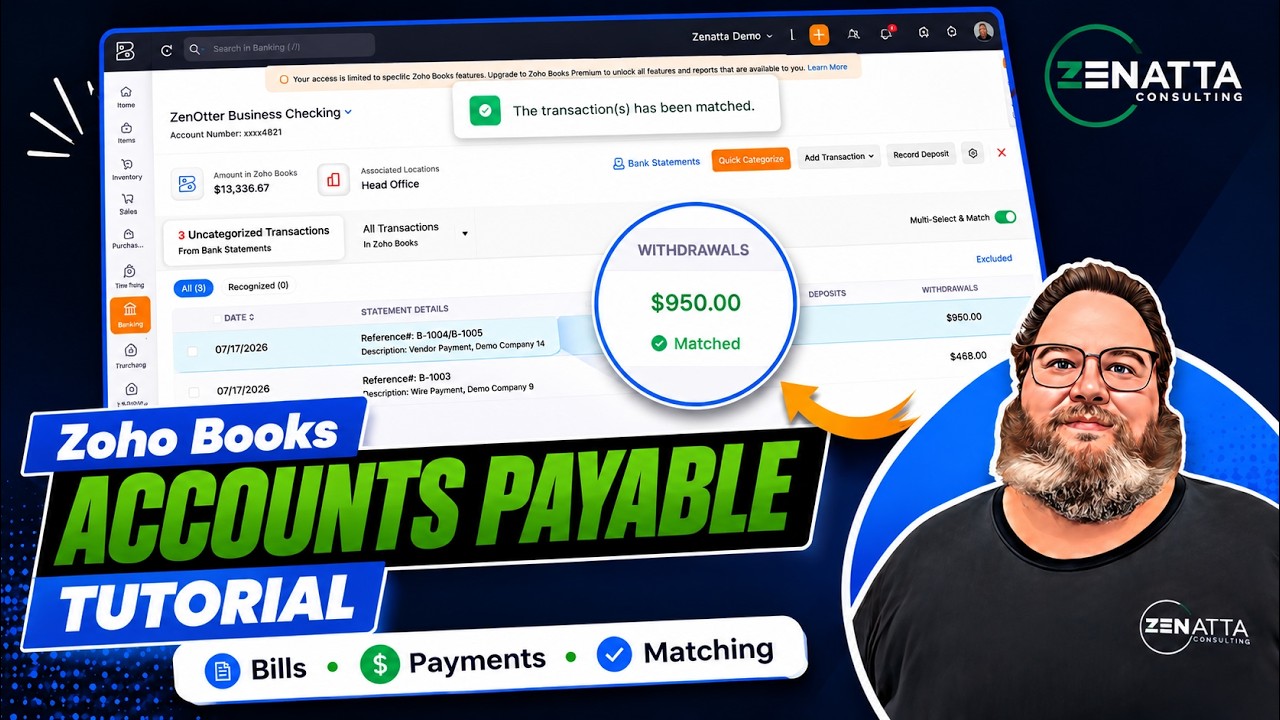
What You’ll Learn
- Vendor setup that holds up: avoiding default currency mismatches and turning on 1099 tracking before year end sneaks up on you.
- Correct bill entry: why the bill date, net terms, and line-level expense accounts determine whether your AP aging report means anything.
- Vendor payments and bank charges: how to record fees on their own line so the payment still matches the bank.
- The paid through account: the single field that causes the most matching failures in accounts payable, and how to get it right.
- Bank feed troubleshooting: a repeatable order of checks when a payment does not appear or the amounts are off by a few dollars.
- AP aging reports: how the summary and detail reports differ and how to use both to find a forgotten bill.
- The mistakes to avoid: the eleven Zoho Books accounts payable errors that generate the most cleanup work.
Main takeaway: Zoho Books accounts payable accuracy comes down to three fields entered deliberately: the bill date, the paid through account on the vendor payment, and the bank charges line. Get those right and matching in the bank feed becomes routine instead of investigative.
What Zoho Books Accounts Payable Is and Why It Matters
Zoho Books accounts payable is the flip side of accounts receivable. It is what your business owes vendors for goods or services you have already received but have not yet paid for. In Zoho Books, that liability is created when you enter a bill, not when you pay it.
Managing it well keeps you from missing payments, incurring late fees, damaging vendor relationships, or losing track of what is actually due. Managing Zoho Books accounts payable poorly does not usually announce itself. The numbers look reasonable right up until the moment you try to reconcile a bank account and discover a dozen payments that will not tie to anything.
Vendor Setup: Two Things to Get Right
A surprising share of Zoho Books accounts payable headaches trace directly back to the vendor record. In Zoho Books, head to Purchases, then Vendors, and click New. Two fields on that record deserve real attention.
Default Currency Mismatch
If you work with a vendor who bills you in a different currency, that currency has to be enabled properly under your multicurrency settings before you assign it on the vendor record. Set the currency without enabling multicurrency first and amounts stop adding up correctly across bills, payments, and reports.
1099 Tracking and the W-9
Technically, 1099 tracking is not part of accounts payable. Practically, it is important enough that it belongs in the same setup conversation. On the vendor record, open the Other Details tab and check the box to track payments made to this vendor for Form 1099 filing. Then enter their tax ID and attach their W-9 if you have it on file.
Do this at setup: turning on 1099 tracking when you create the vendor means the full year of payments is already captured. Turning it on in January means reconstructing a year of activity and chasing vendors for tax IDs during the busiest possible week.
Entering a Bill Correctly
Bills are where your Zoho Books accounts payable liability actually gets created. Head to Purchases, then Bills. Zoho’s own basic functions in bills documentation covers the field reference if you want it alongside this. Every field below has a downstream consequence.
Bill Number
Bill numbers need to be accurate, exactly like invoice numbers on the accounts receivable side. The bill number is how you track what you are paying and how you confirm you are not double paying the same vendor for the same thing.
Bill Date
The bill date needs to be the date you actually received the bill. Not the due date. Not the date you are entering it into Zoho Books. The date it was received. That single convention is what keeps your timing accurate across every report built on top of it.
Net Terms and the Due Date
Net terms determine the due date, and the due date is what your AP aging report is built on. If terms are wrong, the aging report is wrong, and the report you rely on to catch overdue bills quietly stops working.
Dimensions and Line-Level Accounts
If your company uses locations, tags, taxes, customers for billable expenses, or projects, make sure the correct ones are selected on the bill. Also confirm each line item is posting to the correct expense account. Letting everything default to one general expense account when it belongs somewhere more specific is fast in the moment and expensive later.
Reckless clicking: this is what we call clicking straight through a form without reading it. It is the leading cause of downstream cleanup in Zoho Books accounts payable. The fields that suffer most are the bill date, the line-level expense accounts, and the paid through account on the payment.
Attachments and Notes
Attach a PDF or image of the actual bill to the record. Source documents matter a great deal here, both for internal review and for anyone auditing the file later. If there is anything unusual or important about a particular bill, put it in the notes field so the next person looking at it has the context you had.
Recording the Vendor Payment
Once the bill exists, paying it is the second half of the Zoho Books accounts payable workflow. Each field on the vendor payment has a specific job, and Zoho documents the full set under vendor payments.
- Payment made: the full amount you are paying on the bill itself. If the bank took charges out on top of that, those belong on a separate bank charges line. They should never be lumped into the payment made field.
- Payment date: the date you actually paid the bill, even if it has not hit your bank feed yet.
- Payment mode: how you paid. Check or ACH covers most cases.
- Paid through account: the account the money actually left.
- Reference number: follow whatever convention your company uses. Using the bill number the payment is for keeps a clean trail from payment back to obligation.
The paid through account is the biggest single mistake we see. Select the wrong account here and the payment sits in the wrong place in your books. When you go to match it against the bank transaction later, it will not line up, and nothing about the error is obvious from the payment record itself. Slow down on this field specifically.
Starting a Payment from the Bill vs the Vendor
You can start a vendor payment from two places in Zoho Books, and the choice determines what you are able to do with it.
| Starting Point | What You Can Do | When to Use It |
|---|---|---|
| From the bill | You are generally locked into posting the payment against that one bill. | Simple one-to-one payments where a single check or ACH covers a single bill. |
| From the vendor page | You can post one payment against multiple bills and allocate the amount across them. | Any time you are paying more than one bill with a single payment. |
When you do pay multiple bills with one payment, take the extra moment to confirm you selected the correct bills and allocated the amount correctly across them in the bills section. Misallocation here is what creates the partially paid bills and unused credits covered further down. And again, if anything about the payment is unusual, the notes field exists for a reason.
Matching a Zoho Books Accounts Payable Payment in the Bank Feed
The final step is matching the vendor payment in the bank feed once the transaction actually clears. In theory, you open the bank account the transaction came through on, and the vendor payment is sitting there ready to match. When it is not, work through the checks in this order.
Check the Account First
Confirm the account on the payment is correct and that the payment was not manually posted somewhere else entirely. A payment accidentally recorded against petty cash will never show up as a match candidate in your checking account.
Widen the Match Filter
The date range in the match filter has to be wide enough to actually catch the payment. A bill paid by check in March that the vendor did not cash until July will not appear if your filter only looks at recent activity. The bank date and the payment date are different dates, and the gap can be months.
Reconcile Small Amount Discrepancies
If the bank shows one amount and the vendor payment shows a slightly smaller one, the difference is almost always an unrecorded bank charge. A payment recorded at $2,400 against a bank transaction of $2,405 means a $5 fee was taken and never captured. Go back to the payments made area, select the payment, click edit, and add the charge on the bank charges line. Once the fee is recorded, the totals agree and the match becomes available.
Why the separate line matters: recording the fee on the bank charges line keeps the full amount applied to the bill while still reflecting the true cash movement. Lowering the payment made field to force the totals to agree leaves the bill partially paid and creates a second problem to untangle.
Excess Payments and Unused Credits
Here is a Zoho Books accounts payable pattern worth learning to recognize. A vendor shows unused credits and outstanding payables for the same amount at the same time, for example $140 of each. That is not two unrelated issues. It is one payment that was recorded in excess of what it was applied to.
Drill into the vendor and you will typically find a payment that did not quite cover the full amount of a bill, with the remainder sitting as an excess amount rather than being applied. Open the payment, edit it, and scroll down to the allocation section. The excess amount will be visible there. Adjust the allocation so the full amount lands on the bills it was meant to cover, and both the outstanding payables and the unused credits clear at once.
Watch for this during month end: unused credits sitting on a vendor are easy to ignore because nothing looks broken. Meanwhile the bill they should have paid is still showing as due, which means your AP aging report is overstating what you owe.
AP Aging Summary and AP Aging Detail
On a monthly or quarterly cadence, depending on the size of your business, review your Zoho Books accounts payable aging reports. They show what you owe by vendor and how overdue it is, which is how you catch a forgotten bill before it becomes a problem or damages a vendor relationship.
To find them, click the Reports tab in the left sidebar and go to Payables. You will see AP Aging Summary and AP Aging Details.
AP Aging Summary
The summary lists every vendor and what you owe them, sorted into aging buckets. The defaults are 1 to 15 days, 16 to 30 days, 31 to 45 days, and beyond. If those bands do not match how your business operates, you can change both the number of intervals and the length of each one. Switching to four monthly buckets instead of day-based buckets is a common adjustment for businesses with longer payable cycles.
AP Aging Detail
The detail report drills down into the individual bills behind those totals. It shows every overdue bill along with its aging interval, and you can filter by bucket. When the summary tells you something is off in the over-two-months column, the detail report tells you exactly which bills are sitting there.
How to use them together: the AP Aging Summary shows you what you owe and when you should have paid it. The AP Aging Detail tells you exactly what you missed. Start at the summary, then drill into the detail on any bucket that looks wrong.
Post Bills When Received, Not When Paid
This one is worth hammering home. Post your bills when they are received, not when they are paid. Even if only half the amount is due up front, the bill still needs to be entered so the full obligation exists in your books.
Parking that first half in prepaid expenses and skipping the bill entry entirely is not best practice. It hides the remaining obligation from every report built on top of Zoho Books accounts payable, including the aging reports you rely on to catch what is overdue. Getting the timing right here is part of generally accepted accounting principles, not just a nice-to-have preference.
Common Zoho Books Accounts Payable Mistakes
- Setting a vendor’s default currency without enabling multicurrency in settings first.
- Leaving 1099 tracking off until January, then reconstructing a year of vendor payments under deadline.
- Using the entry date or the due date as the bill date instead of the date the bill was received.
- Letting every line item default to one general expense account instead of the account it belongs to.
- Netting bank fees out of the payment made field instead of recording them on the bank charges line.
- Selecting the wrong paid through account, which makes the payment unmatchable in the bank feed.
- Starting a payment from an individual bill when it needs to cover several, then working around the limitation.
- Leaving excess payment amounts unallocated, which produces unused credits alongside phantom outstanding payables.
- Filtering the bank feed match window too narrowly to catch checks cashed months later.
- Skipping the AP aging reports entirely and finding out about a missed bill from the vendor.
- Skipping bill entry when only a partial payment is due up front and parking the amount in prepaid expenses.
Frequently Asked Questions
What date should I use for a bill in Zoho Books?
Use the date you actually received the bill. Not the due date, and not the date you happen to be entering it into Zoho Books. The bill date combined with your net terms is what drives the due date and the AP aging report.
Where do bank charges go on a vendor payment?
On the separate bank charges line. The payment made field should always be the full amount applied to the bill. If you net the fee out of the payment amount instead, the payment will not match the bank transaction.
Why is my vendor payment not showing up in the bank feed to match?
Check three things in order. First, confirm the paid through account on the payment is the account the money actually left. Second, widen the date range in your match filter, since a check may not be cashed for months. Third, compare the amounts, because an unrecorded bank fee will create a small discrepancy that blocks the match.
What is the paid through account and why does it matter so much?
The paid through account is the account the money left when you paid the bill. If you select the wrong account, the payment posts somewhere other than where the bank transaction appears, so it will never line up during matching. It is the single most common source of Zoho Books accounts payable cleanup work.
Can one vendor payment be applied to multiple bills in Zoho Books?
Yes, but you have to start from the vendor page. If you start the payment from an individual bill, you are generally locked into posting against that one bill. Starting from the vendor page lets you allocate a single payment across multiple bills.
Why does my vendor show unused credits and outstanding payables at the same time?
That pattern almost always means a payment was recorded in excess of the bills it was applied to. Open the payment, review the allocation, and apply the excess amount to the bill it was meant to cover. Once the excess is zero, the credits and the outstanding balance both clear.
What is the difference between the AP Aging Summary and the AP Aging Detail report?
The AP Aging Summary shows what you owe by vendor, grouped into aging buckets. The AP Aging Detail drills into the individual bills behind those totals. The summary tells you what you owe and when it was due; the detail tells you exactly which bill you missed.
Can I change the aging buckets on the AP aging reports?
Yes. The default intervals are 1 to 15 days, 16 to 30 days, 31 to 45 days, and beyond, but you can change both the number of intervals and the length of each one. You can switch to monthly buckets if your payables run on longer cycles.
Should I enter a bill if only part of it is due up front?
Yes. Post the bill when it is received so the full obligation is visible in your books, even if only half the amount is payable immediately. Parking the first half in prepaid expenses and skipping the bill entry entirely is not best practice, and the timing of the entry is part of generally accepted accounting principles.
Do I need to set up 1099 tracking in Zoho Books before year end?
Set it up when you create the vendor. Turning on 1099 tracking, entering the tax ID, and attaching the W-9 at setup means you are not chasing missing vendor information in January when filings are due.
Does this tutorial cover converting a purchase order into a bill?
No. The purchase order to bill conversion process is a separate topic with its own workflow considerations, and it is covered in a dedicated video rather than in this accounts payable walkthrough.
Is Your Zoho Books Accounts Payable Process Creating Cleanup Work?
If your vendor payments will not match, your AP aging report has stopped being trustworthy, or 1099 season means a week of reconstruction, our Zoho Books finance and bookkeeping team can straighten out the file and build a repeatable Zoho Books accounts payable process that holds up month after month. If you would rather your own team owned it, the Zoho Books team training course covers purchases and reconciliation in depth.
Talk to Zenatta