


Zoho CRM is a powerful tool that enables automation of routine tasks through event-triggered workflows. These workflows help teams stay informed and efficient by sending alerts when specific events occur—like a new lead entering the system or a contract nearing renewal.
In this guide, you’ll learn how to configure email templates and set up workflow rules to automate internal notifications based on CRM activity.
What Are Event-Triggered Workflows?
Event-triggered workflows in Zoho CRM allow you to automate actions such as:
- Sending alerts when a new lead is created
- Notifying teams when a deal stage changes
- Reminding staff about upcoming task deadlines
- Alerting account managers before a contract renewal
These automations help your team respond quickly and reduce manual follow-up.
Step 1: Configure Email Templates
Before workflows can send notifications, you need to create email templates:
- Go to Setup > Customization > Templates
- Click New Template and select the relevant module (e.g., Leads, Deals, Accounts).
- Choose a blank template or start with a standard one.
- Add your content:
- Use merge fields (e.g.,
#First_Name,#Company) to auto-fill record data. - Include a CTA button linking to the specific CRM record. Use the record’s unique ID in the URL.
- Format the visuals to match your brand (optional).
- Use merge fields (e.g.,
? Pro Tip: Include the recipient’s name using user merge fields like #User_First_Name for a personal touch.
Step 2: Set Up Event-Triggered Workflows in Zoho CRM
Now that you have your templates, attach them to workflow rules triggered by specific CRM events.
New Lead Notification
- Module: Leads
- Trigger: On record creation
- Condition: Lead status is “Not Contacted”
- Action: Email sent to lead owner using the “New Lead Notification” template
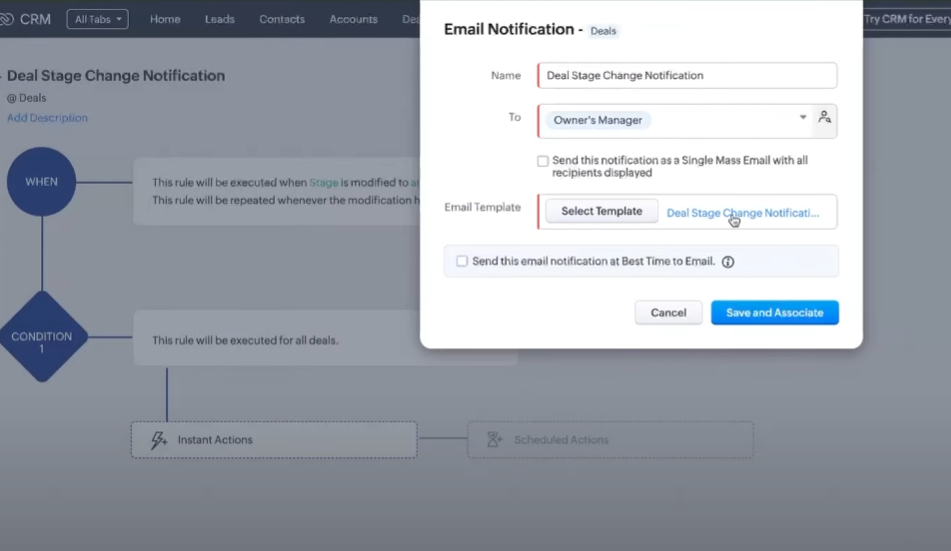
Deal Stage Change Alert
- Module: Deals
- Trigger: On field update (Stage)
- Action: Email sent to deal owner’s manager using the “Deal Stage Change Notification” template
Task Deadline Reminder
- Module: Tasks
- Trigger: 1 day before the due date
- Condition: Status is not “Completed”
- Action: Email sent to task owner, their manager, and creator using the “Task Deadline Reminder” template
Contract Renewal Notification
- Module: Accounts
- Trigger: 30 days before the “Contract Renewal Date”
- Action: Email sent to account owner using the “Contract Renewal Reminder” template
Tips for Success with Event-Triggered Workflows in Zoho CRM
- Keep email templates simple and focused, especially for internal use.
- Test workflow rules with dummy records to ensure accuracy.
- Use visual formatting in templates to highlight key information like deadlines or client names.