

The purchase process in Zoho Inventory ties together four key actions: creating a purchase order, receiving the items, converting the receive into a bill, and recording the payment. Each step has its own data, its own settings, and its own implications for inventory and accounting, so understanding the flow as one connected process is the difference between clean books and constant cleanup.
This guide walks through the full process from start to finish. By the end, you should feel comfortable creating purchase orders from either a sales order or from scratch, receiving inventory the right way, converting that activity into vendor bills, and applying payments cleanly so reconciliation stays simple.
What You’ll Learn
- How to create purchase orders: from a sales order or directly from the Purchases section.
- How to receive items properly: including partial receives, in-transit status, and when to avoid the Mark as Received shortcut.
- How to convert to a bill: the difference between billing from a receive versus billing yet-to-receive items.
- How to record payments: including single-bill payments, multi-bill payments, vendor credits, and disassociation.
Main takeaway: the most common and cleanest order of operations is purchase order, then receive, then bill, then pay. Following that order keeps inventory, accounts payable, and cash all properly aligned.
Step 1: Create a Purchase Order
There are two main ways to create a purchase order in Zoho Inventory. You can convert an existing sales order into a purchase order, or you can create one from scratch in the Purchases section. Both paths end in the same place, but converting from a sales order saves significant manual data entry when the same items need to be ordered from a vendor.
Option A: Convert from a Sales Order
Open the sales order you want to convert. The Convert button at the top only handles invoice conversions, so instead click the three-dot menu and choose Convert to Purchase Order.
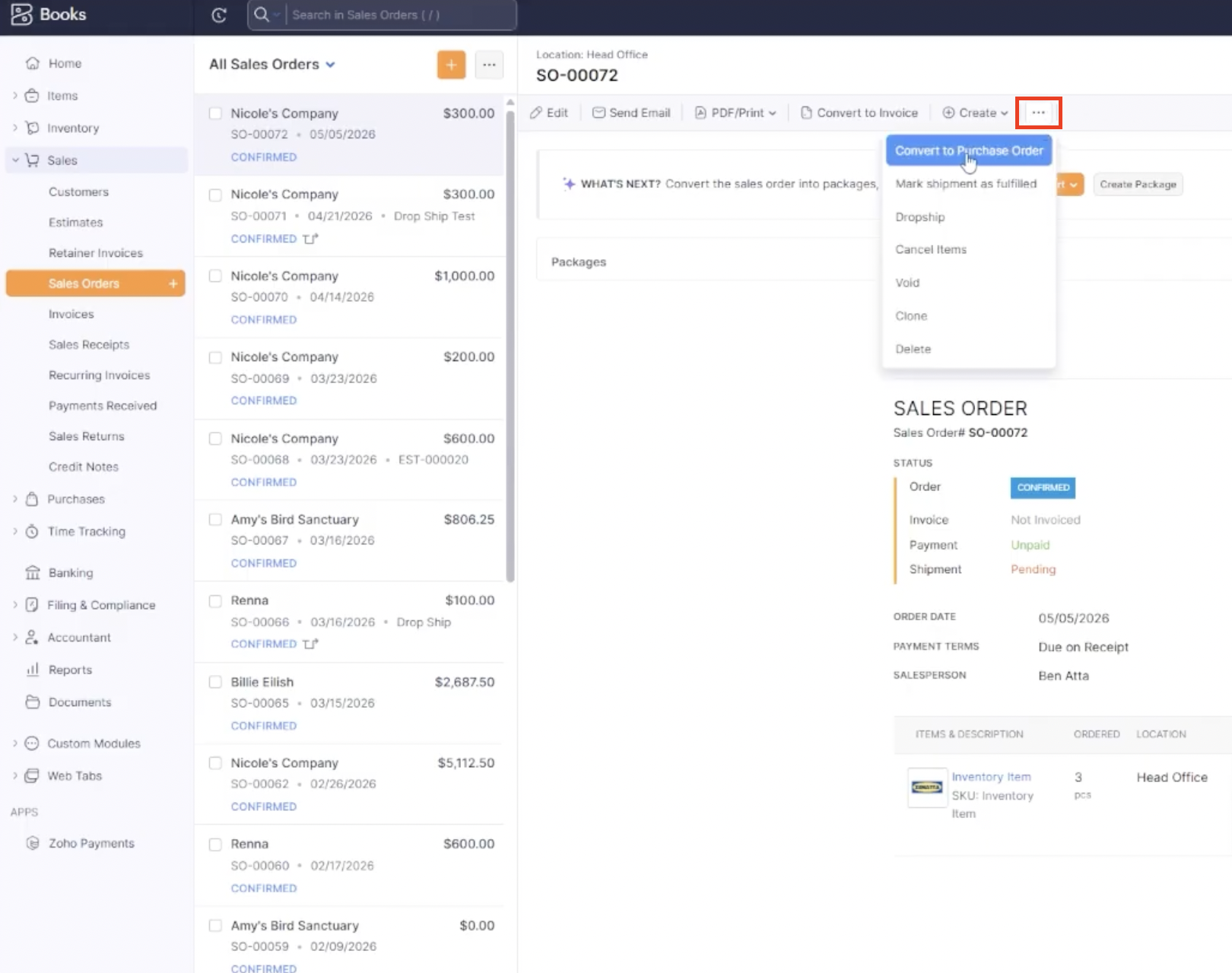
Zoho will ask whether to copy the item descriptions from the sales order to the new purchase order. If the descriptions on the sales order are customer-specific, choose no. If the descriptions are generic item details that also apply to the vendor, choose yes.
You may also see a warning that items will be delivered to the default location. If you want to change that, you can pick another location, ship directly to a customer, or enter an address manually if you do not use locations.
Once you assign a vendor at the top, Zoho fills in much of the purchase order automatically, including the reference number (which carries over from the sales order) and the line items. You can adjust quantities, remove lines with the red X, or apply price lists, discounts, and other adjustments as needed.
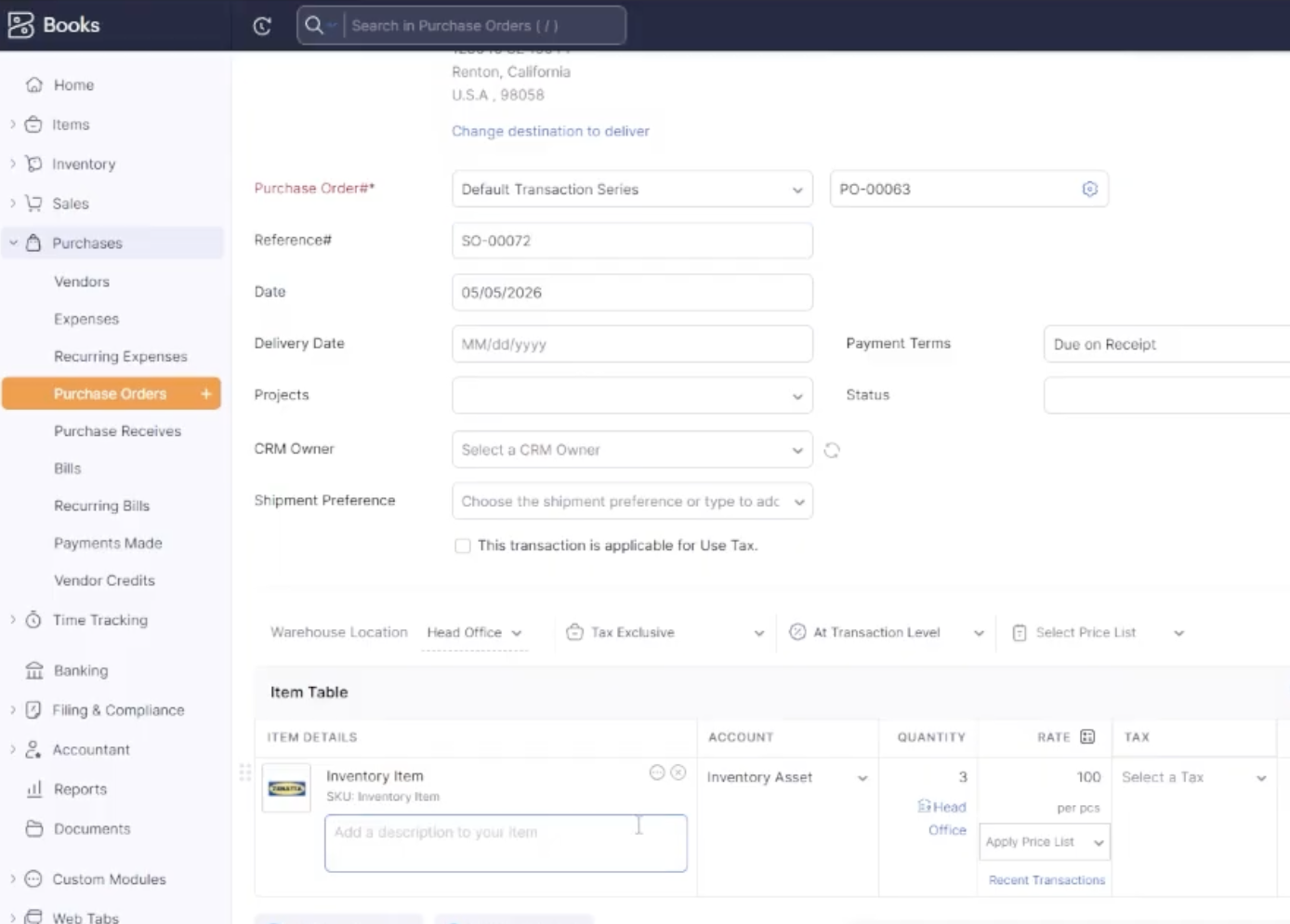
Option B: Create a Purchase Order from Scratch
If you do not have a sales order to start from, go to the Purchases section and click the plus button to add a new purchase order. You can also use the quick-add option from any tab.
The form behaves the same way as the converted version, with two key differences. There is no reference number pre-filled (so add one manually if you need it), and the line items are blank, meaning you will need to add each item, quantity, and rate yourself.
Save as Draft or Mark as Issued
Once the purchase order is built, save it as a draft if you are still finalizing details, or mark it as issued to indicate that the order has been sent to the vendor. Marking as issued is what unlocks the next steps in the workflow.
Step 2: Receive the Items
On an issued purchase order, you will see two action prompts: convert to a bill, or receive. Most businesses receive first and bill second, so that vendor payments are only triggered after the inventory actually arrives. Zoho supports billing first if your process works that way, but receive-then-bill is the cleaner default.
Create a Purchase Receive
Click Receive from the what-is-next prompt, or use the Receive button at the top of the purchase order. This opens a new purchase receive form.
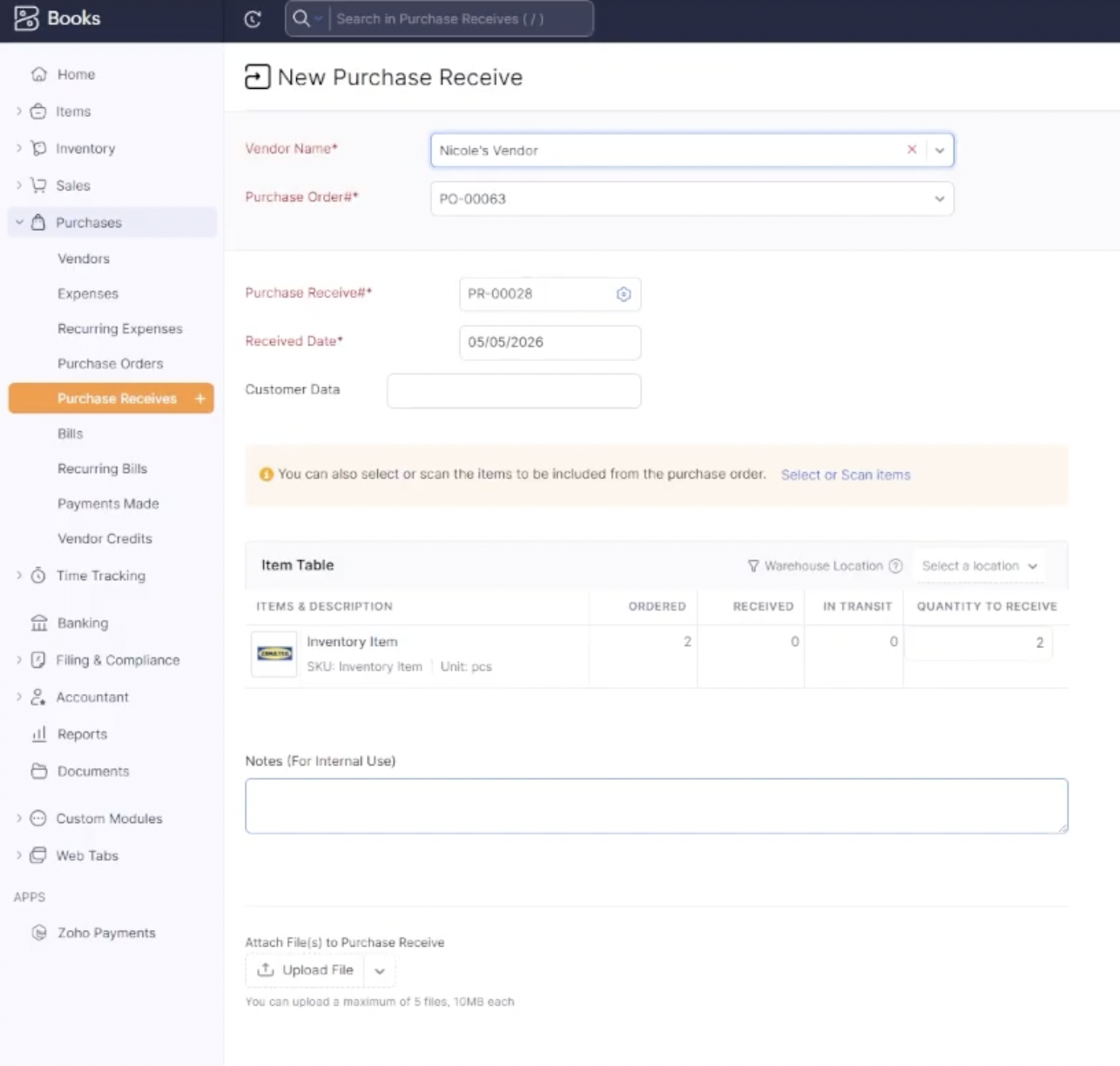
The purchase receive is auto-numbered, and the received date defaults to today (you can change it). If you track serial numbers or batches, this is where you assign them, either by scanning or entering them manually. You can also adjust the received quantity if you only got part of the order, and remove specific line items with the red X if some items did not arrive at all.
Partial Receives and In-Transit Status
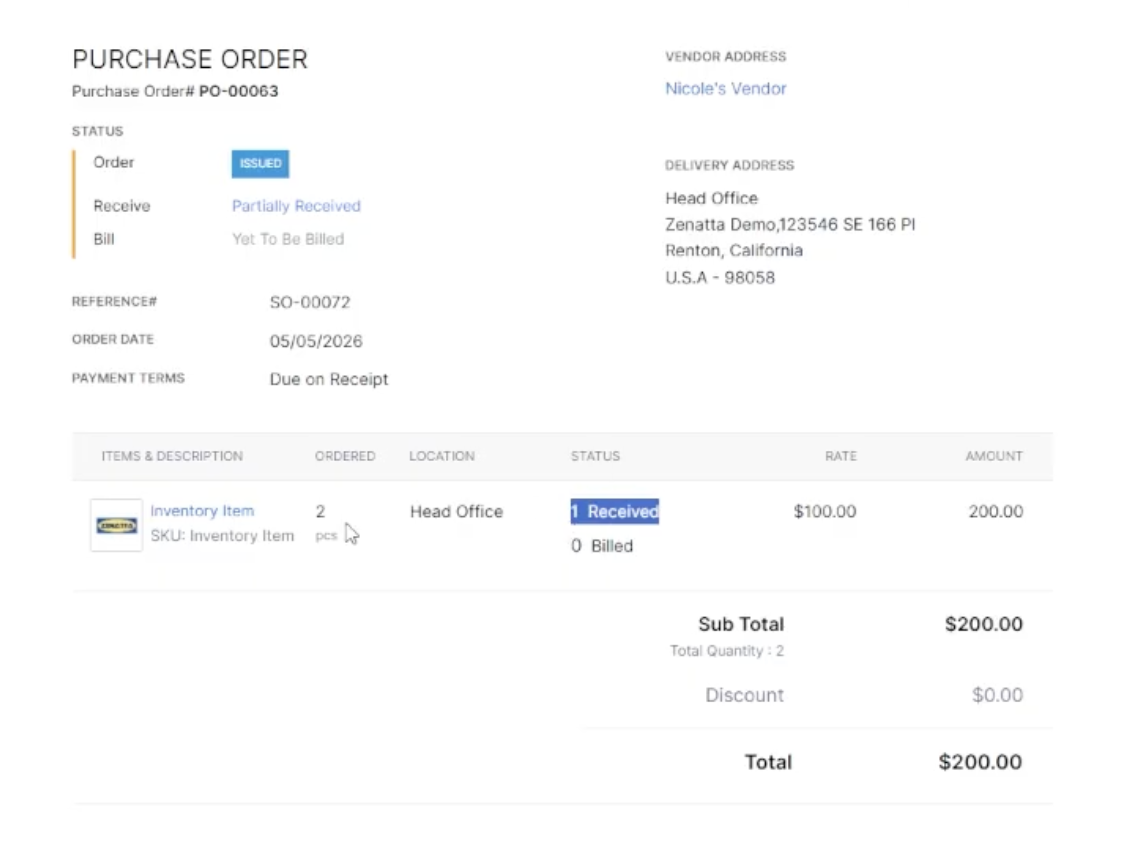
If you only receive part of an order, save it as received with the partial quantity. The purchase order will then show a status like “1 received” out of “2 total,” and the Receive button stays available until everything is accounted for. If items have shipped but not yet arrived, you can mark a receive as in transit, which is useful for tracking purposes in the Purchase Receives module.
Why You Should Avoid the “Mark as Received” Shortcut
The top of the purchase order also has a Mark as Received button. This is not the same as creating a purchase receive. It is a blanket action that closes out any remaining open quantity on the purchase order without creating a detailed receive transaction.
Important: Mark as Received should generally be reserved for inventory cleanup or for closing out old, stale purchase orders. It does not create a record in the Purchase Receives module, so you lose visibility into when items were actually received and any associated tracking data. For day-to-day receiving, always use the standard Receive workflow.
If you marked a purchase order as received by mistake, you can use Mark as Unreceived to reverse the action.
Step 3: Convert to a Bill
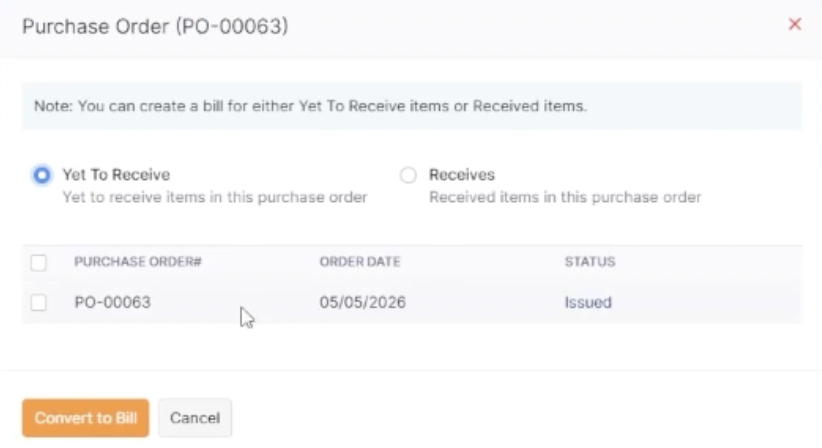
Once items are received, the next step is to convert to a bill. You can do this from the purchase receive directly, but the more flexible option is to convert from the purchase order itself, because it gives you a choice between billing the received items or billing items that have not yet been received.
Bill from a Receive vs. Yet-to-Receive
When you click Convert to Bill, Zoho asks whether you want to bill against a receive or against yet-to-receive items. Billing from a receive is the most common path: it pulls in exactly the quantity and items that were received, which usually matches what the vendor is billing you for. Yet-to-receive is useful when a vendor invoices before shipment.
Fill in the Bill Details
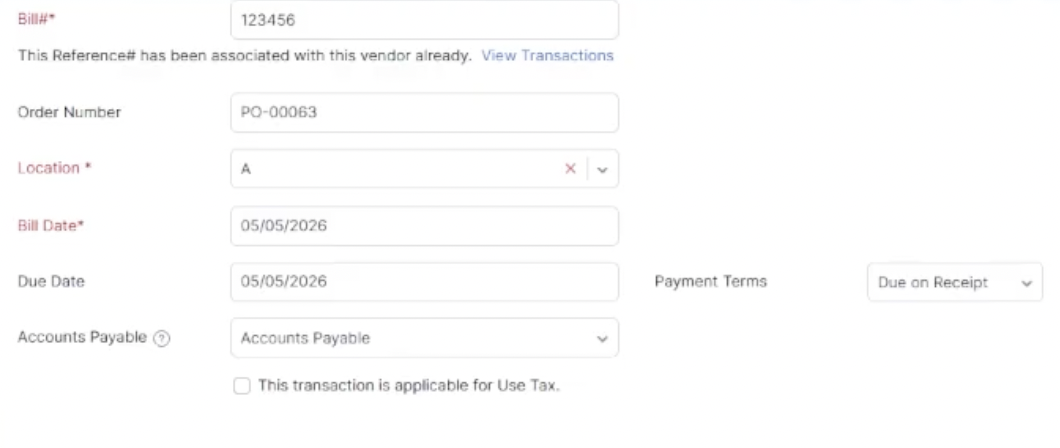
The vendor is assigned automatically. You will need to enter:
- Bill number: from the document your vendor sent you
- Location: if you use locations, assign the correct one
- Bill date: matches the vendor’s bill, defaults to today
- Due date: populated from vendor payment terms, editable if needed
Assigning Customers, Projects, and Landed Cost
On the bill, you can also assign customers (and mark the bill as billable or non-billable), associate projects (either from Zoho Books or a Zoho Projects integration), and add landed cost lines like shipping or freight. Landed cost has additional capabilities for distributing those charges across the items on the bill, but the basic add-a-line option is enough for most situations.
Save as Open
Save the bill as Open once everything is entered. From this point, the bill is tied to its source purchase order, and both records are mutually linked. From the purchase order you can see the bill status and amount, and from the bill you can click straight back to the originating purchase order.
Step 4: Record a Payment
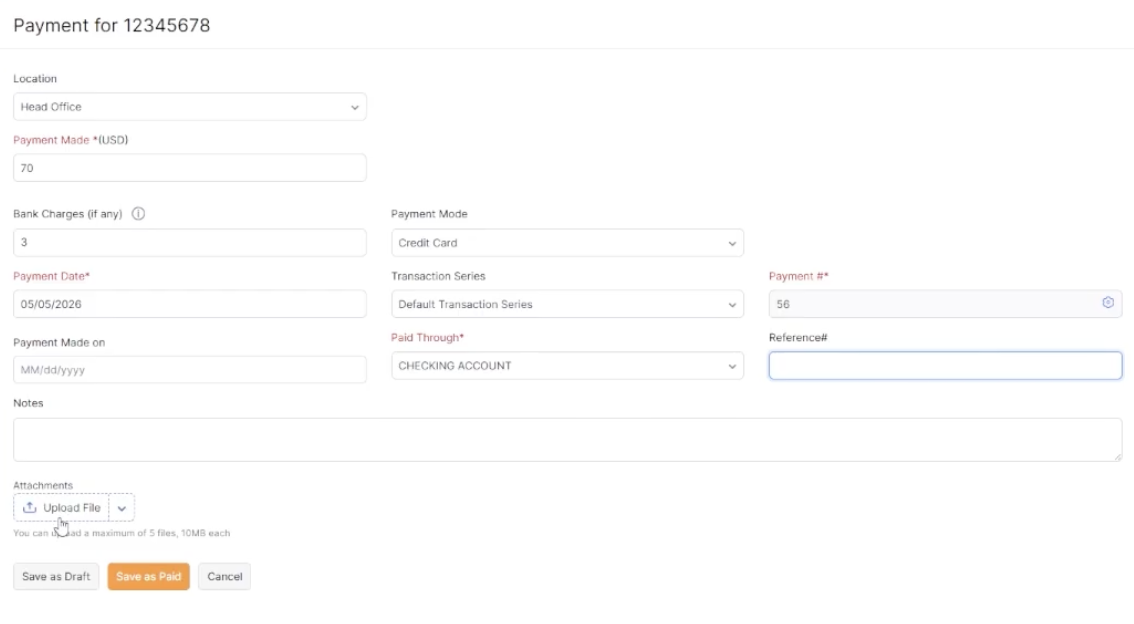
From an open bill, click Record Payment at the top to log a payment against it. If you have direct payment options configured (such as pay by check or pay by ACH), those will be available here too.
Key Fields to Get Right
- Payment made: the amount applied to this bill, can be partial
- Payment mode: credit card, check, cash, ACH, etc.
- Bank charges: any processing fees added to the payment
- Payment date: the actual date of payment
- Paid through: the bank or clearing account the payment came from
- Reference number: check number, transaction ID, or receipt number
Critical: the Paid Through field is the single most important field to get right. Selecting the correct account here prevents reconciliation headaches later. Always confirm it matches the actual account funds came from.
Editing a Payment Later
If a payment has not been reconciled yet, you can click into it and edit the details. The edit view looks slightly different because it shows all open bills for that vendor and how the payment is distributed across them. Adjustments to amount, mode, date, paid-through, and reference number happen in the top section of that view.
Paying Multiple Bills at Once
Paying one bill at a time works for individual transactions, but if you are running an AP batch, the better path is to pay multiple bills in a single transaction.
Go to the vendor record, click New Transaction, then select Bill Payment. Enter the total amount you are paying. Zoho will ask whether you want it auto-applied. If you say yes, it fills from the top down across open bills until the amount is used up.
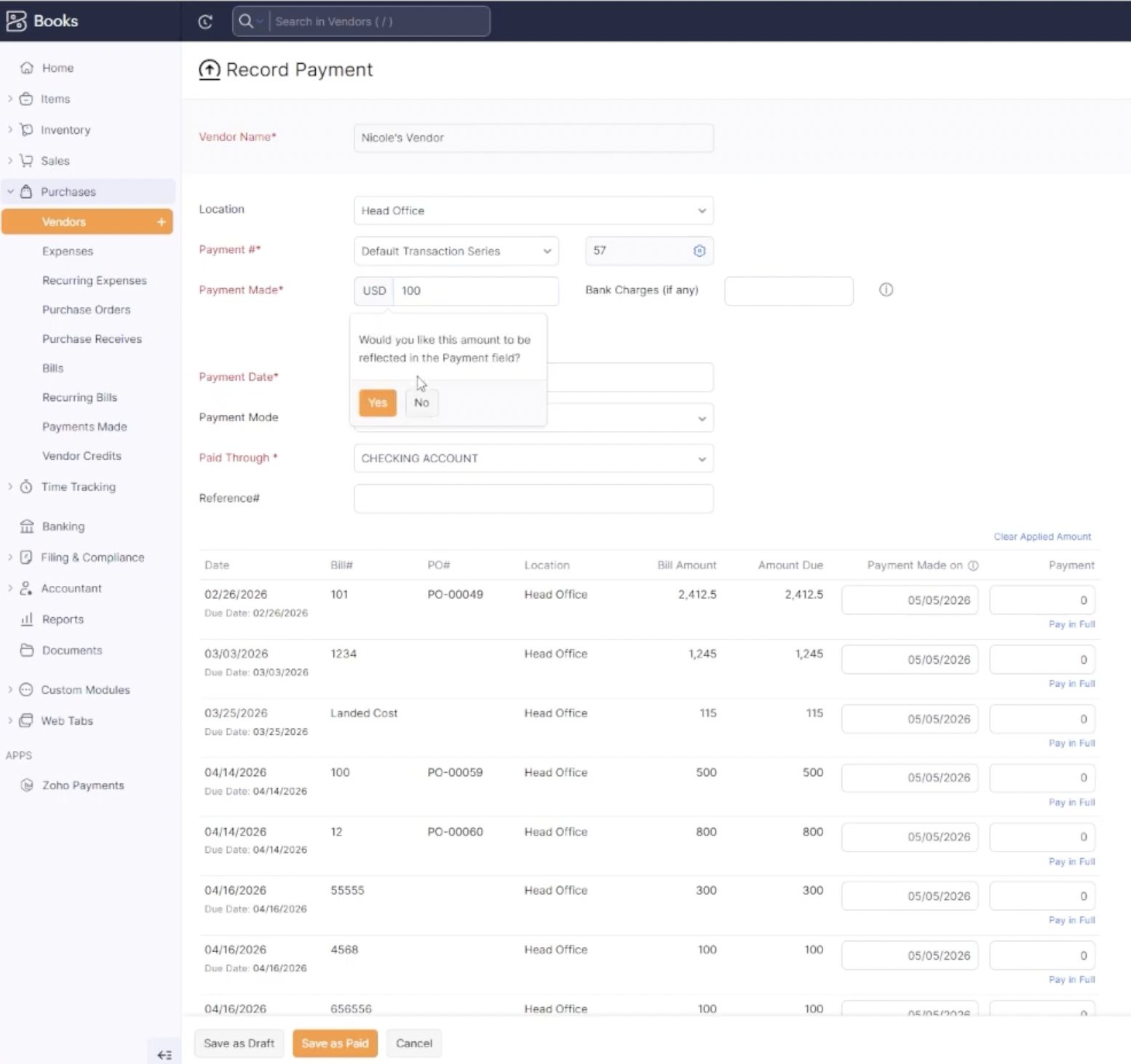
You also have Pay in Full options on each line if you want to mark specific bills as paid in full without dividing the total manually, and a Pay Full Amount option at the bottom that fills in every open bill at full value. That option is the fastest way to close out a vendor when you are paying everything they have invoiced.
Working with Vendor Credits
If a vendor has issued credits to your account, Zoho will prompt you to apply them when you open a bill. You can apply credits directly from the prompt or navigate to the vendor’s credit list and apply them manually.
Delete vs. Dissociate a Payment
When viewing applied payments on a bill, two options appear next to each payment:
- Delete: removes the payment entirely from Zoho. The payment is gone with no remaining trace.
- Dissociate and add as credit: keeps the payment in the system but unlinks it from the current bill, converting it to an available credit that can be applied to a different bill.
Dissociation is the safer choice when you are correcting an application error or matching to a vendor statement. Deletion should be reserved for true mistakes where the payment never actually happened.
Creating a Vendor Credit
To create a vendor credit from scratch, use the New Transaction menu on the vendor record and select Vendor Credit. The process can get more complex depending on your inventory situation, so detailed credit-note handling is worth a separate workflow review.
Purchase Process Summary Table
| Step | What It Does | Key Decision Points |
|---|---|---|
| Purchase Order | Records what you are ordering from the vendor | Convert from sales order or create from scratch; choose delivery location |
| Receive | Records the inventory arriving from the vendor | Full or partial receive; in-transit status; serial or batch tracking |
| Bill | Records the vendor’s invoice as accounts payable | Bill from a receive or yet-to-receive; assign customers, projects, landed cost |
| Payment | Records the actual outflow of funds to the vendor | Single bill or multi-bill; correct paid-through account; reference number |
Common Mistakes to Avoid
- Using the Mark as Received button as your default receive method. It skips the Purchase Receives module and reduces traceability.
- Forgetting to set the correct Paid Through account when recording a payment. This is the most common source of reconciliation errors.
- Skipping the bill number field on a vendor bill. The bill number is what ties your record to the vendor’s invoice and is essential for AP cleanup.
- Deleting payments when you really meant to dissociate them. Deletion is permanent; dissociation preserves the audit trail.
- Treating yet-to-receive billing as the default. It works, but billing from a receive ensures you only pay for what you actually got.
Why This Workflow Matters
The purchase order, receive, bill, and payment chain is the backbone of accurate inventory accounting in Zoho. Each step has a specific job: the purchase order captures intent, the receive captures physical reality, the bill captures the financial obligation, and the payment captures the cash movement. When all four happen in the right order with the right data, inventory valuation, accounts payable, and bank reconciliation all stay clean.
Shortcuts like Mark as Received or skipping the receive step entirely tend to feel faster in the moment but create long-term cleanup work. The full process takes only a few extra clicks and gives you the audit trail and traceability that makes month-end close significantly easier.
Frequently Asked Questions
How do I convert a sales order into a purchase order in Zoho Inventory?
Open the sales order, click the three-dot menu at the top, and select Convert to Purchase Order. Zoho will ask whether to copy item descriptions, then build a new purchase order with the same line items.
Should I receive items first or bill first in Zoho Inventory?
Most businesses receive first, then bill, so payment is only triggered after inventory actually arrives. Zoho supports billing first if your workflow requires it.
What is the difference between Receive and Mark as Received?
Receive creates a full purchase receive record with traceability. Mark as Received closes out open inventory in bulk without creating that record and is best reserved for cleaning up old or stale purchase orders.
Can I pay multiple vendor bills at once in Zoho Inventory?
Yes. Open the vendor record, click New Transaction, then Bill Payment. Enter the total, choose auto-apply or pay in full, and Zoho distributes the payment across open bills.
What is the difference between deleting a payment and dissociating it as a credit?
Deleting removes the payment entirely from Zoho. Dissociating keeps the payment but unlinks it from the current bill, making it available as a credit to apply elsewhere.
Need Help With Your Zoho Inventory Setup?
If your team needs help configuring purchase workflows, vendor management, multi-location inventory, or full Zoho Inventory and Books integration, Zenatta can design and implement the right solution for your operations.
Talk to Zenatta