





Managing a growing team in Zoho CRM just got easier. Role-Based Views in Zoho allow you to create custom views and filters based on team roles, not just individual members. This guide breaks down the how-to.
Understanding Roles and Groups
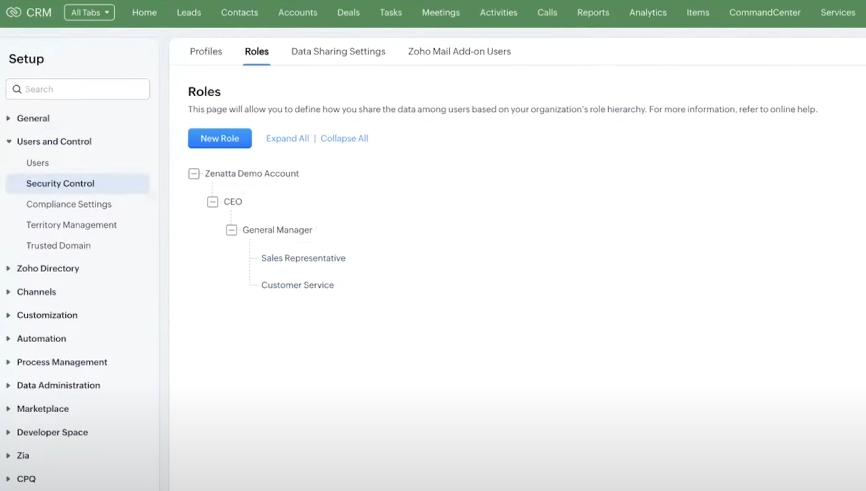
Before you set up custom views, it’s essential to grasp the roles and groups within Zoho CRM. Roles serve as a hierarchical framework, dictating who has access to what. Groups, on the other hand, offer a more freeform way of grouping users.
Creating Custom Views
The Old Approach
Previously, if you wanted a custom view, you’d need to manually list each team member by name. As you can imagine, this became a hassle with staffing changes.
The New Approach
Role-Based Views in Zoho simplify this process. Now, you only need to select the role or group in your criteria, and the custom view adjusts dynamically.
Quick Filters for On-the-Spot Changes
Beyond custom views, Zoho CRM offers quick filters. These are great for making spontaneous changes to your lists. The latest update adds group participation as a filtering criterion.
Why Make the Switch?
Embracing Role-Based Views in Zoho eliminates the need for continuous updates to your custom views. This saves you time and reduces the chance of error, especially as your team evolves.
Conclusion On Role-Based Views in Zoho
Role-Based Views in Zoho are a practical, time-saving feature. Make the switch now to enhance your CRM’s efficiency.
For additional resources, be sure to check out our resource library.